


Whether you’ve observed an unanticipated battery drain problem on your iPhone or you are interested in confirming its ability to perform well, examining the battery cycle count is a good practice. In this guide, I will show how you can check the battery cycle count of your iPhone.
- What does the iPhone battery cycle count indicate?
- How to check your iPhone battery cycle count using Shortcut
- How to check iPhone battery cycle count from Analytics Data
What does the iPhone battery cycle count indicate?
A battery cycle count is like a fitness tracker for your iPhone’s battery life. Every time you use up about 100% of your battery’s juice, the iPhone calculates it as one cycle. However, unlike hitting the gym, the more cycles your battery goes through, the less fit it becomes.
Now, why does it matter? Well, the battery’s health affects how long your iPhone lasts between charges. A new battery should endure for an extended period, much like a champion marathon runner. However, as it accumulates cycles, it’s akin to requesting your grandpa to sprint a mile – it might huff and puff a bit.
How to check your iPhone battery cycle count using Shortcut
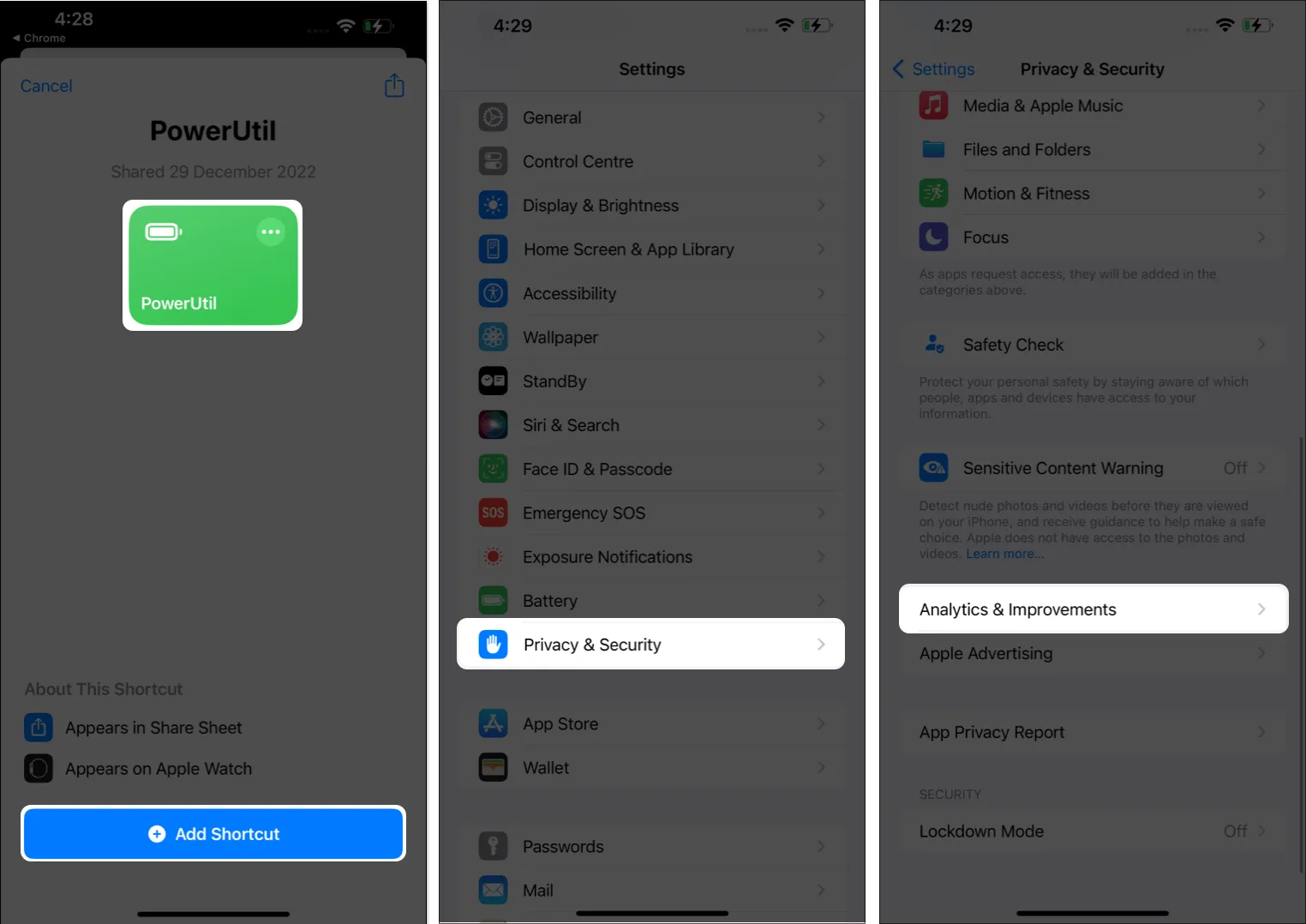
- Download the PowerUtil shortcut on your iPhone.
- Select (+) Add Shortcut.
- Now, launch the Settings app → Go to Privacy & Security → Select Analytics & Improvements.
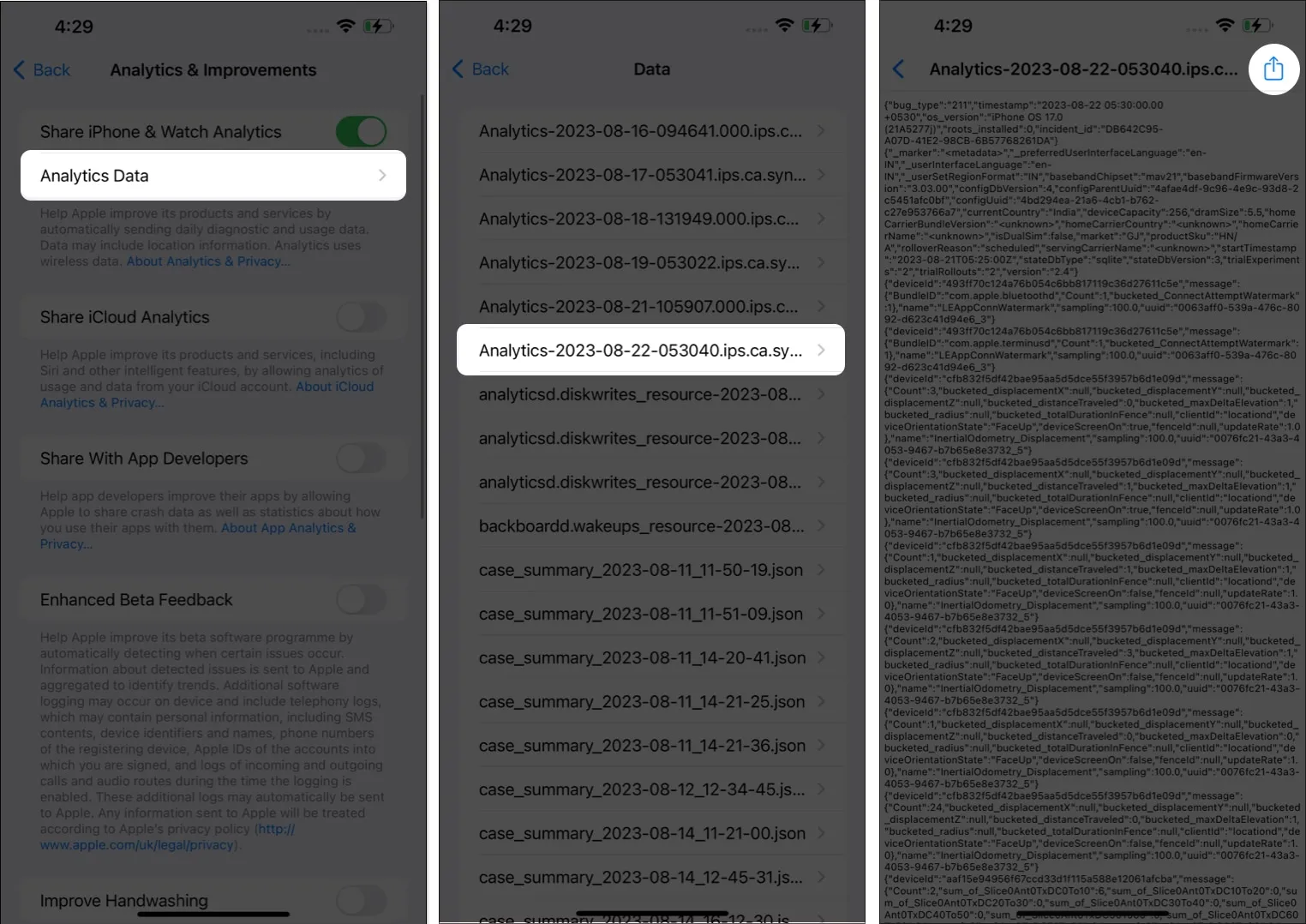
- Choose Analytics Data → Open the latest Analytics file (the one with the present day’s date).
- Tap the Share icon at the top right.
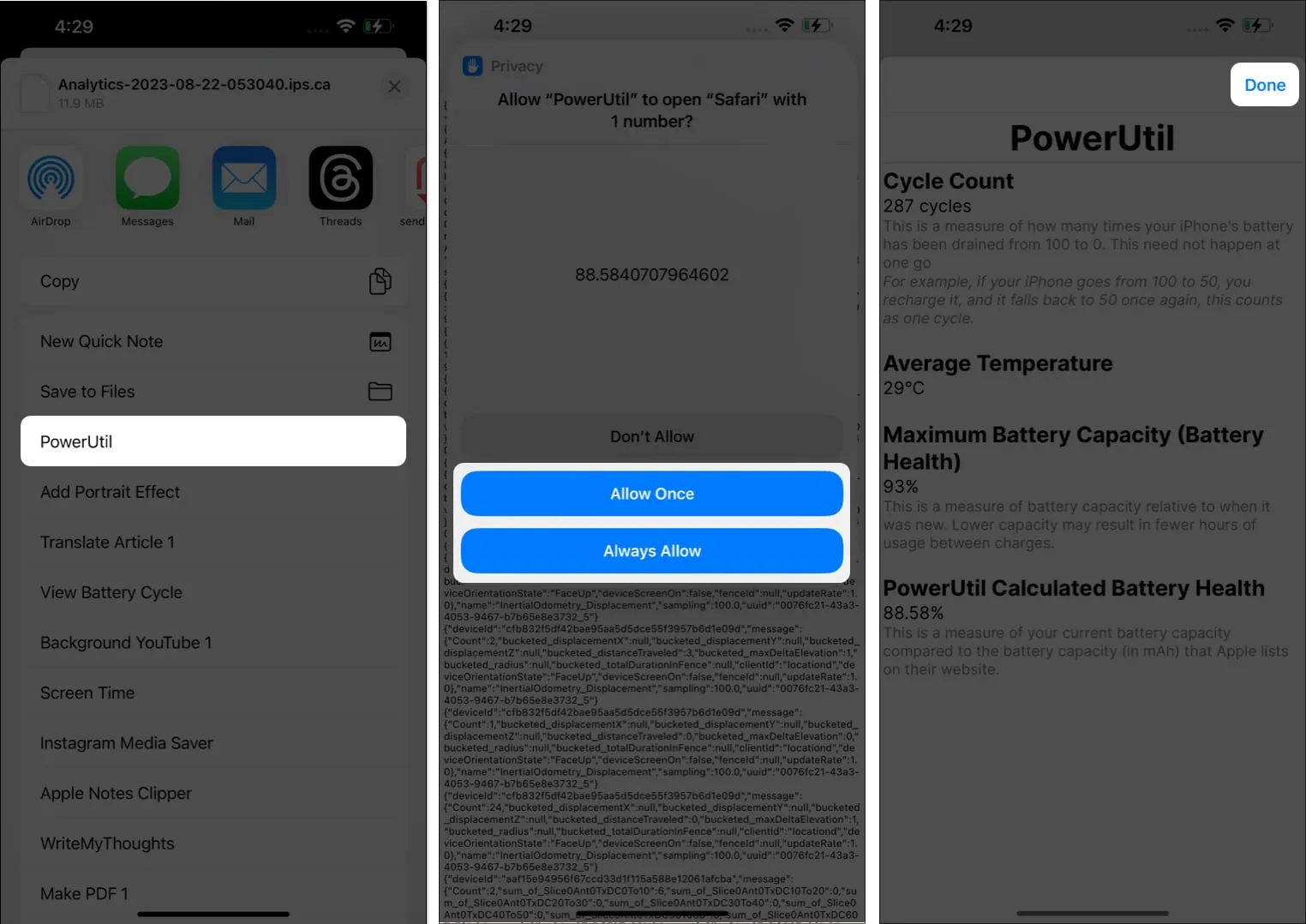
- Select PowerUtil.
- Let the shortcut use Safari Once or Always, depending on your preference.
- Then, you should be able to see the battery Cycle Counts for your device. Tap Done when done viewing.
How to check iPhone battery cycle count from Analytics Data
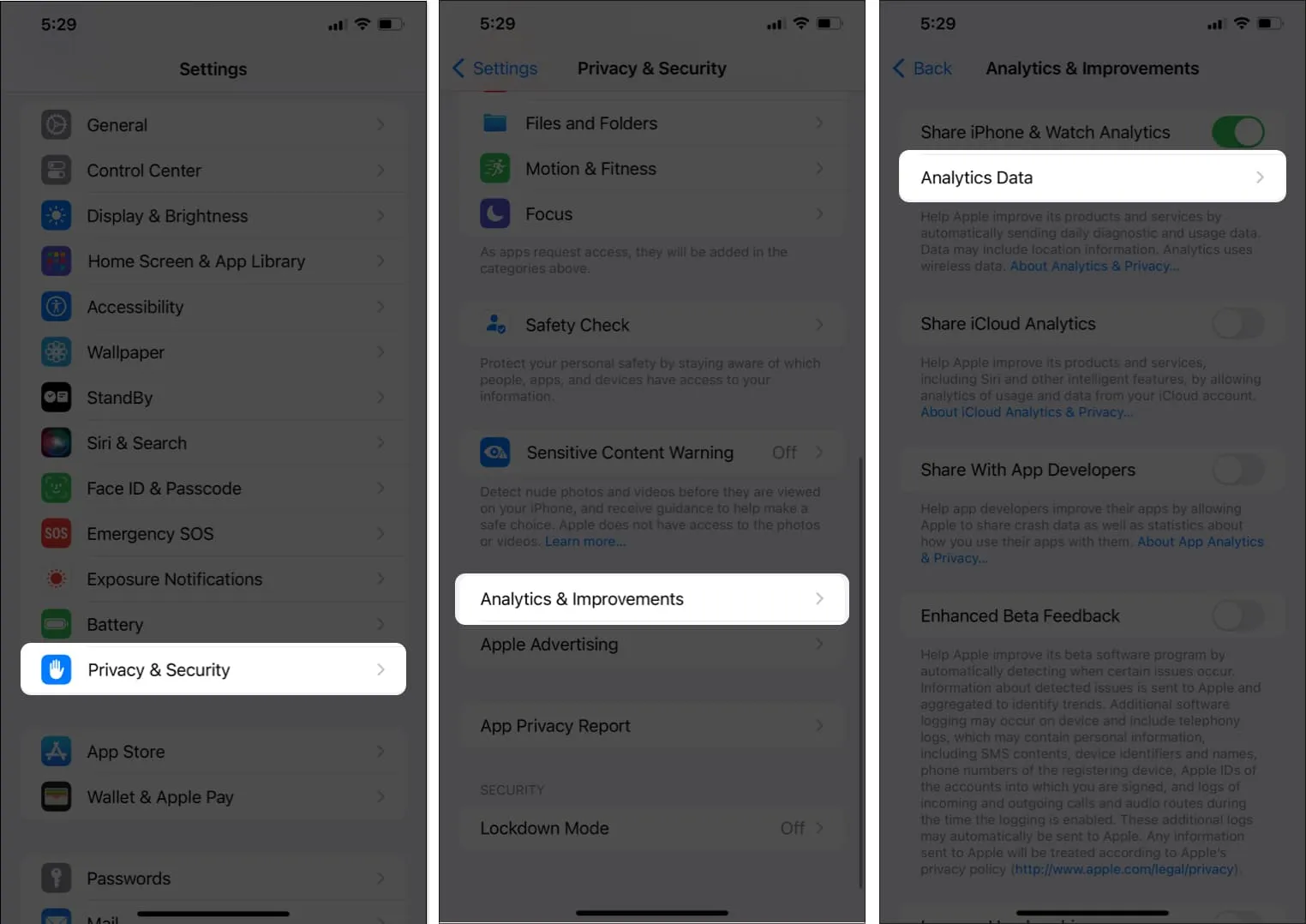
- Launch the Settings app.
- Go to Privacy & Security → Select Analytics & Improvements → Open Analytics Data.
- Choose the latest Analytics file → Copy the data from the file.
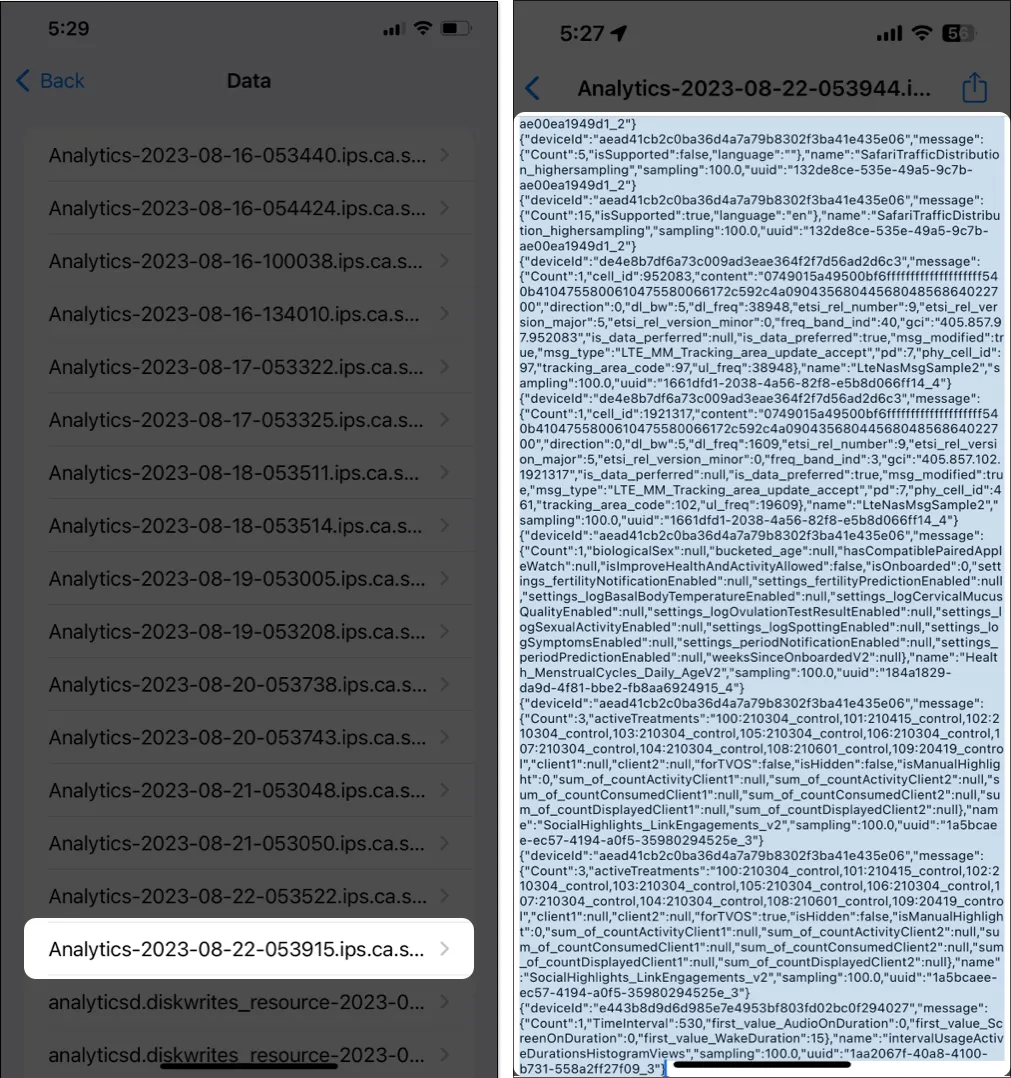
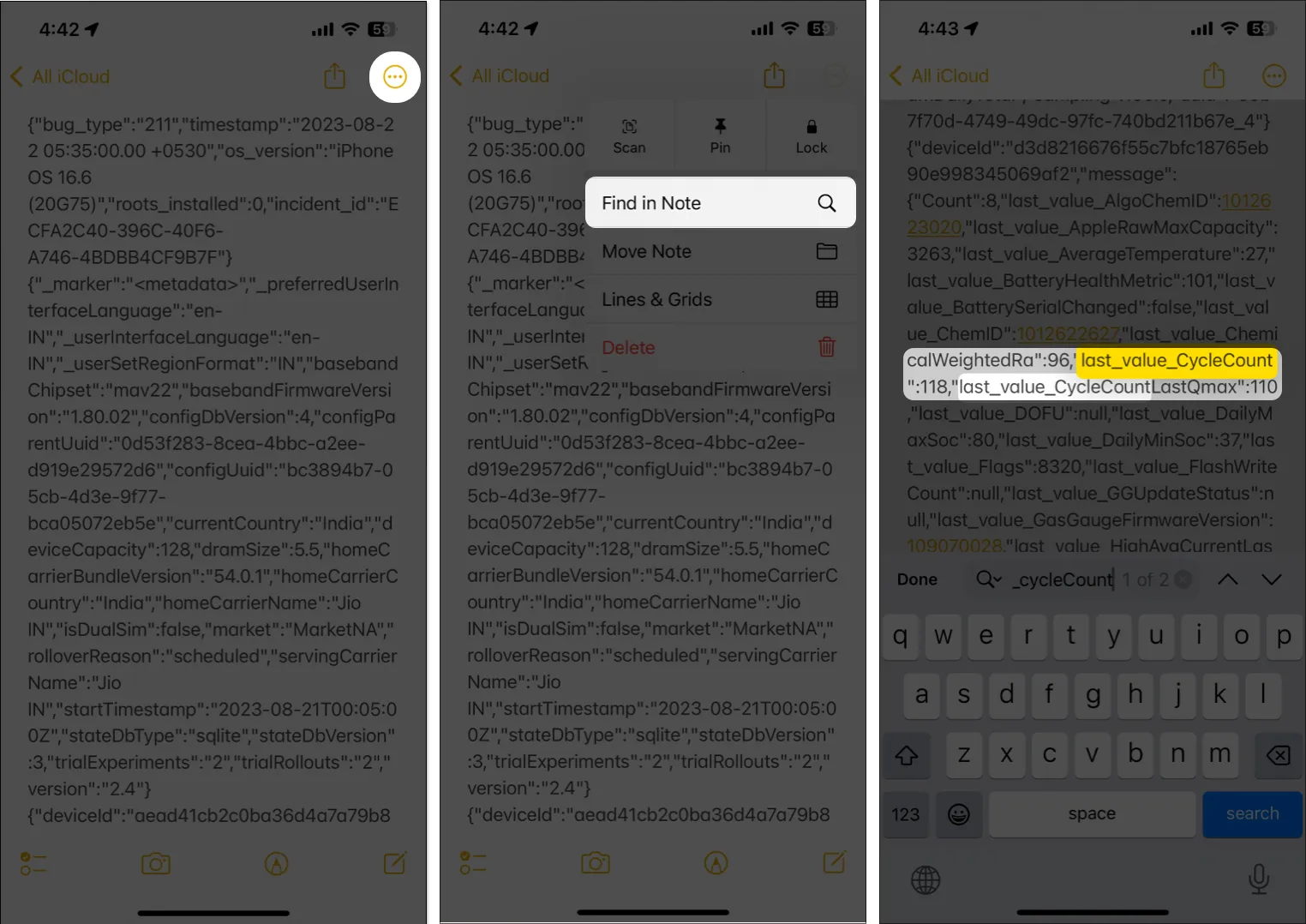
- Paste this data in a new note the Notes app.
- Tap the three dots icon → Pick Find in Note.
- Search for last_value_CycleCount and find the number next to it.
FAQs
How often should I monitor the charge cycle count of my iPhone?
Checking the charge cycle count of your iPhone once every few months is sufficient if you’ve owned the device for several years.
Is a high charge cycle count a reason to be concerned about my battery’s health?
If your battery health drops below 80%, and you’ve accumulated a high cycle count, you may consider replacing your battery. This is because significantly higher counts might indicate that your battery is well past its golden phase.
What can I do to maintain the battery health of my iPhone?
You can refer to our comprehensive article to maintain the battery health of your iPhone, which outlines the simplest methods to achieve this goal.
Wrapping up…
Those mentioned above are straightforward methods to monitor the cycle count of your iPhone battery. By examining the battery cycle count and its overall health, you can gain a clearer insight into its performance and determine whether adjustments to your charging habits are necessary.
Feel free to share your thoughts in the comment section regarding how effective this approach has been for assessing the battery status of your iPhone or iPad.