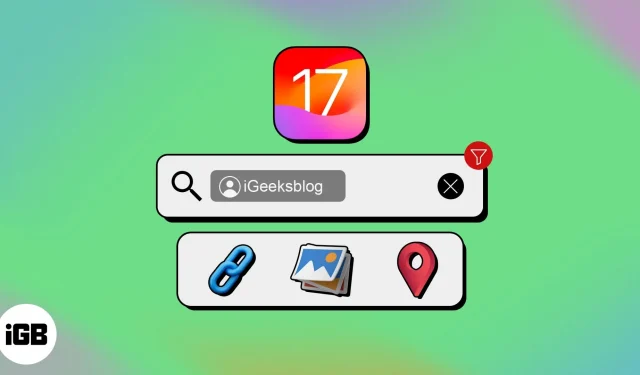

Are you struggling to find an important document or specific link you received in Messages? iOS 17 has come to your rescue with a new convenient feature called Smart Search Filters in the Messages app. Here, I will share how to access and use Smart Search Filters in iMessage on iPhone in iOS 17.
- What are Smart Search Filters in the iMessage app?
- How to use Smart Search Filters in iMessage in iOS 17 on iPhone
- How to use default Smart Filters in iMessage on iPhone in iOS 17
- How to disable Smart Filters in iMessage in iOS 17 on iPhone
What are Smart Search Filters in the iMessage app?
The Smart Filters in iOS 17 allow you to effectively search through your conversations and locate a specific text or attachment in a jiffy. With the help of on-device machine learning algorithms, this feature categorizes all your texts on various parameters such as sender, date, keywords, attachments, and more.
So, if you only remember one word about the message you are searching for, it will show all texts containing that word. Overall, these intelligent filtering capabilities elevate the Messages app‘s functionality and bring added convenience.
How to use Smart Search Filters in iMessage in iOS 17 on iPhone
- Go to Messages → Swipe down to access the Search bar.
- Type a category like Photos or Documents to see all the attachments in iMessage.
- Type a word to see contacts, text messages, links, and attachments having that word.
- Select See All to get more search results.
- Tap a search result to jump to the chat.
- Type a contact name → Select Messages with: [contact name].
Besides these new smart filters in the Messages app, there are some default SMS filters.
How to use default Smart Filters in iMessage on iPhone in iOS 17
- Open Messages → Tap Filters.
- Here, you can see a series of filter categories as follows:
- All Messages: Lists all conversations classified in a systematic order.
- Known Senders: Provides a curated list of conversations with saved contacts.
- Unknown Senders: Consists of text requests sent from unknown contacts.
- Unread Messages: Enlists all text messages that are yet to be seen.
- Recently Deleted: The deleted messages not so long ago are available here for a significant period.
Furthermore, those who have enabled SMS FILTERING can access the extra filters described below:
- All Transactions: It contains a complete logbook of bank transactions and enlists every message the bank sends.
- Finance: This section further categorizes your messages from different banks or financial apps.
- Orders: The messages sent by food delivery apps, e-commerce apps, and package delivery services are all available here.
- Reminders: It usually contains reminders to pay the bills or messages your bank sends.
- Promotions: This confines every promotional message you receive from third-party services.
How to disable Smart Filters in iMessage in iOS 17 on iPhone
- Launch Settings → Select Messages.
- Tap Unkown & Spam.
- Select None.
FAQs
Are Smart Search Filters in the Messages app only limited to text messages?
Not at all! Smart Search Filters in the Messages app go beyond just text messages. They also work with multimedia messages, such as photos, videos, and even voice recordings.
Can Smart Search Filters in the Messages app recognize different languages?
Absolutely! The Smart Search Filters in the Messages app are multilingual, meaning they can understand and filter messages in various languages.
Do Smart Search Filters in the Messages app support searching for specific message types, like links or attachments?
Whether you’re looking for links shared in a conversation, attachments like documents or PDFs, or any other specific message type, the smart filters can sort through your messages and give you relevant results.
Use the Messages app like never before!
I hope you’ve discovered a new incredible functionality of the Messages app. These smart filters allow you to effortlessly locate essential messages. So, you don’t need to navigate through countless conversations. If you can’t access the Smart Search Filters, update your iPhone to the latest iOS 17 version.